Back
FELR Health
2026
Content Analytics Tracker
A web app that helps the FELR Health team better understand social media video performance through a color-coded content library, category comparisons, and AI insights.

Overview
I was tasked with building a web app that helps FELR Health understand how their social media videos perform. The internal interface lets users upload video files, and automatically syncs each upload with their Meta account video performance data. The app allows them to view data in a color-coded content library, and explore an in-depth analytics dashboard that compares performance across content categories, and incorporates AI insights.
After a video is uploaded, computer-vision models scan the frames for scene cuts, on-screen text, faces and motion, while speech-to-text transcribes the audio to find the spoken hook, speaking pace and when speech starts. This produces a structured profile of the video's characteristics that can be compared against its performance metrics. All data demonstrated here is made up for showcasing purposes, and not reflective of actual FELR brand performance.
The Design Goal
Comparison by category: FELR’s videos can be split into three main categories: Founder Talking Head, Educational Infographics, and Lifestyle. My central goal was to design an interface which provides a clear understanding of how each of the three categories perform compared to one another.
Include additional insights: I also wanted to incorporate AI to flag patterns users couldn’t easily find on their own, such as which video characteristics relate to better performance. This meant designing the app in a way that brought new info to people’s attention, while still making them feel in control.
Home Page
Library and Upload

The library is where users first meet the category color system. Each row has a slim colored bar instead of a filled background, so the category registers at a glance without competing with the numbers.
Search and sort are compact icons in the top right in order to keep them included despite the colored category filter tabs as the main emphasis.
Category is required at upload to further emphasize this comparison for users.
I started with large letter icons on each row (F / E / L). They took up space and only hinted at category, so I replaced them with the color bars and also colored each category label to reinforce specific categories.
Full row shape is responsive to the hover animation and clickable to the “Full Details” popup for clarity and ease of use.

Filter System: I designed the filters to pair with the coloring system to drive clear insights on which categories perform better at a given metric. In this case, Founder Talking Head posts dominate the list of top longest watched videos.
Data Details
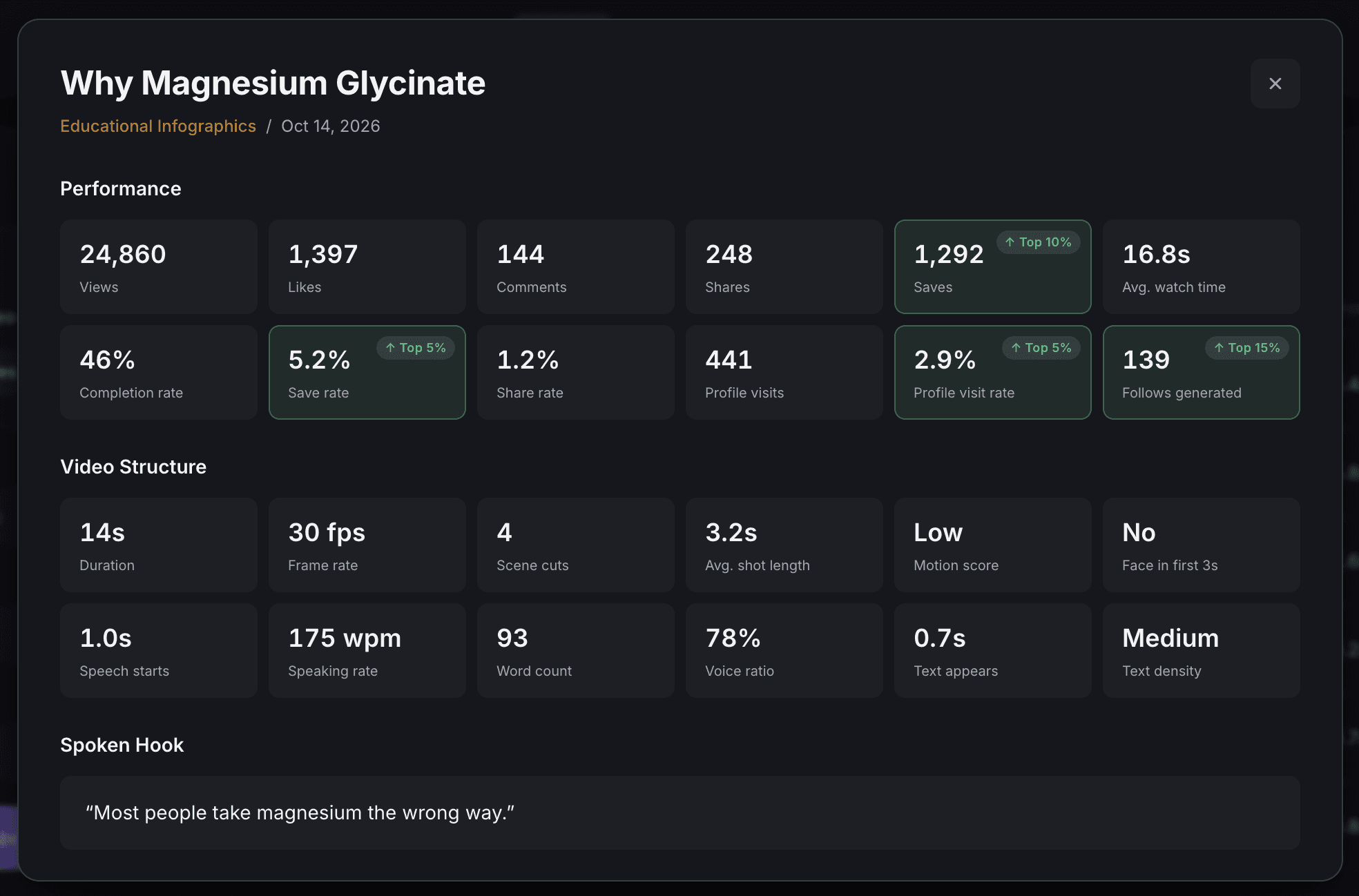
Each row in the library is clickable to this popup window, showing a comprehensive view of video metrics. I designed this functionality as a balance between making it easy to access the complex set of data, without overwhelming users with it on their initial list view.
Automatic performance ranking: each of the 12 performance metrics is ranked against the whole library, and metrics in the top or bottom 20% are tinted green or red. This allows users to see at a glance what stands out about a video, without manually comparing numbers.
Video Structure sits right below Performance, so people can compare how a video was made to how it performed. I initially tried a left/right split approach between the two categories, but decided on the current layout because I received feedback that performance is the most desired component, so I wanted that to be naturally viewed first.
Spoken hook is included because it is a crucial part of most short-form videos, and it grounds users as a reminder of the video’s content.
Analytics Dashboard
Performance Over Time

Acts as an intuitive way for users to compare video categories in varied stats over time. This is intentionally placed at the top of the section to emphasize this categorical comparison, while still providing stat selection and date filter customizability to keep the user in control.
Hovering shows a crosshair and a tooltip with all three categories’ values for that week, allowing users to focus on specific storylines and data points that interest them.
Category Scorecards

I designed this section to directly address my categorical comparison goal. One card per category shows five headline metrics, and I am planning in the future to add others or create the ability for users to customize which metrics show up.
Each metric’s bar is scaled to the best category on that metric, so the cards can be compared side by side without reading numbers.
The green highlight on each metric’s leader reuses the “Top %” language from the Data Details popup, and emphasizes the strongest positive trends.
AI Insights

Each card leads with one large number, followed by a single plain-language claim and the supporting figures with an even smaller size. It’s built for quick user scanning.
My goal here was to present trends to users that they are likely not aware of as they scan the dashboard, split into what tactics relate to performance (row 1) and what each category does best (row 2).
The category insights were initially located inside each video popup. Moving them to the dashboard put them where comparison happens and decluttered the home page.
Compare a Characteristic

I designed this comparison chart to be fully customizable, with cause and effect reading left to right. Purple always marks the better-performing group for clarity.
The tool lets users pick any video characteristic in the database, and compare videos with/without it based on any performance metric. This design is heavily focused on providing customizability and making users feel in control.
Originally, each characteristic was locked to a single metric. I separated them into two dropdowns (characteristic and metric), so users can test any combination.

